About two minutes, one time. After that the devices remember each other.
1. Install the free Mac app
Download Control My Mac for Mac, open the .dmg and drag the app to Applications. Open it and it lives in your menu bar, showing a QR code. macOS will ask for the Accessibility permission: that's what lets the app move the pointer and type for you, like a real mouse and keyboard. Allow Bluetooth too if you plan to use it.
2. Get the iPhone app
Install Control My Mac from the App Store. The same app works on iPad.
3. Scan to pair
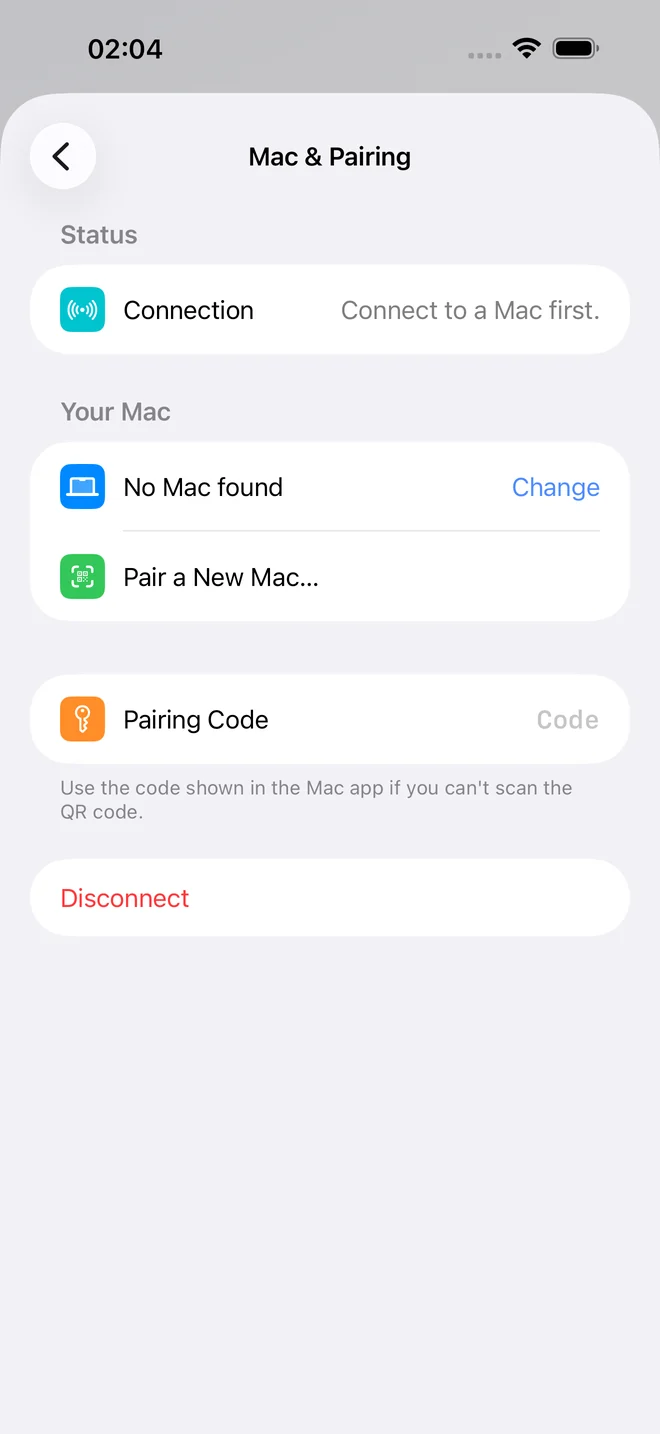
Open the app and point the camera at the QR code on your Mac. That's the pairing. The camera is used for nothing else. If you can't scan, the Mac app also shows a pairing code you can enter instead. There's no account to create.
4. Pick Bluetooth or Wi-Fi
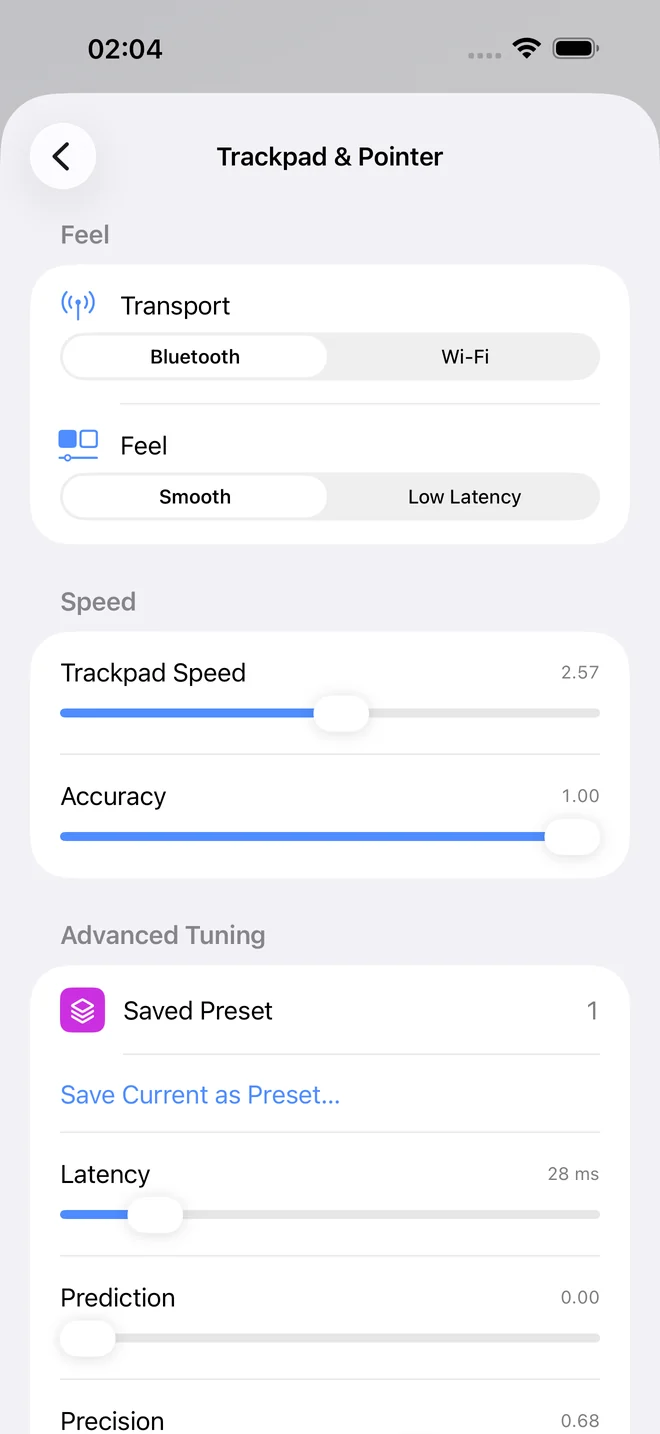
Bluetooth is the recommended choice. It gives the smoothest, most consistent pointer movement, and it works without any network, which helps at venues and hotels. Use Wi-Fi if Bluetooth isn't available: both devices need to be on the same network, and the app needs the Local Network permission on the iPhone. Guest networks and some office or hotel networks block devices from seeing each other, so switch to Bluetooth there. You can change this any time in the app's Trackpad & Pointer settings.
Stuck? The support page covers firewall, Local Network and VPN fixes.