Every action is one finger
Pointer, click, right-click, scroll, type, launch an app, switch windows — each one is a single-finger gesture or a single tap. There is no "now hold these two keys" moment, anywhere.
Designed one-handed from the start
One usable hand, a cast, an RSI flare, or an arm that's currently holding a sleeping baby — whatever the reason, Control My Mac gives you the entire Mac through one finger on your iPhone or iPad. Not a workaround for a few tasks. The full thing.
macOS 14+ · iOS/iPadOS 18+ · Essentials keeps trackpad, clicks, Live and Draft Keyboard basics, one Grid button and Launcher preview free.

Most "remote mouse" apps assume two steady hands somewhere in the flow. This one never does — including setup.
Pointer, click, right-click, scroll, type, launch an app, switch windows — each one is a single-finger gesture or a single tap. There is no "now hold these two keys" moment, anywhere.
Controls are sized for a thumb, not a pixel hunt. If your grip, reach or precision varies day to day, the interface doesn't punish you for it.
The composer keyboard lets you write and edit the whole message on your iPhone or iPad first, then insert it on the Mac in one go. No racing a live cursor in someone else's text field.
Keyboard shortcuts that normally need both hands stretched across a keyboard — copy, paste, switch apps, take a screenshot — fire from a single tap on your iPhone or iPad.
Pairing is scanning a QR code on your Mac's screen. No typing codes, no entering IP addresses, no settings spelunking.
A small menu-bar companion. Open it once, approve the standard macOS permissions, and it shows a QR code.
The camera is used only to read that code — scan it with the phone in whichever hand is free.
The devices connect directly over your local network or Bluetooth, encrypted. No account to create, ever.
Anyone for whom a keyboard and mouse ask more of their hands than they want to give right now. You don't need a diagnosis or a reason.
An honest note. Most of the iPhone and iPad app's text follows your iOS text size, though some labels on the main screen don't scale yet and we're fixing that. Dark mode uses warm, low-glare colors, and Help Mode makes every button explain what it does instead of doing it, so you can learn the layout at your own pace. We haven't finished testing the app with VoiceOver, Voice Control or Switch Control, so we don't claim support for those yet. If touching a screen with one finger isn't comfortable for you, the built-in macOS tools below may suit you better, and they combine well with this app.
macOS has solid built-in accessibility tools for one-handed use. They're free and worth knowing. Here's what each one does, and the gap it leaves when you're not sitting right at the keyboard.
Press modifier keys one at a time instead of all at once, so Shift-Command-4 becomes Shift, then Command, then 4. It's in System Settings, Accessibility, Keyboard. Apple's guide
Where it falls short: you still need to be at the keyboard and reach keys spread across it, and it does nothing for the pointer.
An on-screen keyboard for using the Mac without a physical one, with custom panels you can build in the Panel Editor. Apple's guide
Where it falls short: it takes up part of the Mac's screen, and you need a way to point and click to use it.
Rest the pointer on something and a click, double-click, right-click or drag happens after a short countdown. It's designed for head- and eye-tracking. Apple's guide
Where it falls short: every action waits for a timer, and you still need something to move the pointer.
Mouse Keys moves the pointer from the keyboard or number pad. Alternate pointer actions click using keys, switches or facial expressions. Head pointer moves the pointer with your head, using the Mac's camera. Apple's guide
Where it falls short: Mouse Keys is slow over long distances and needs the keyboard, and head pointer needs you facing the camera, close to the Mac.
Tip: Option-Command-F5 opens the Accessibility Shortcuts panel so you can switch these on and off quickly. On a Mac or Magic Keyboard with Touch ID, pressing Touch ID three times does the same, which is easier with one hand.
It puts the Mac's pointer and keyboard on the phone in your hand, so you can sit wherever is comfortable and still do everything.
Drag a thumb to move the pointer, tap to click, double- or triple-tap, press and hold to drag. Mouse Hold keeps the button down for you, so a long drag doesn't need constant pressure.
Tap Command once to latch it on, then tap the next key. Tap Command again to release it. Ready-made buttons cover copy, paste, undo, Spotlight, screenshots and switching apps.
Put any shortcut on a Grid button, recorded from the Mac's keyboard or entered by hand. With Full App, up to 12 of your shortcuts can also sit in the trackpad's top row. Give an app its own Grid in one tap (Full App) and it switches in by itself whenever that app is in front. More in the Grid guide.
Write in the Draft keyboard at your own pace, with the phone's autocorrect and dictation, then insert the text on the Mac in one go. Open apps from the Launcher instead of hunting in the Dock.
What's free: the Essentials plan covers the pointer, click, right click, the Live and Draft keyboards and one Grid button. Shortcut buttons, quick controls like Mouse Hold, scrolling, the full Grid and the Launcher without prompts come with Full App. Setup details are in the iPhone as a mouse guide.
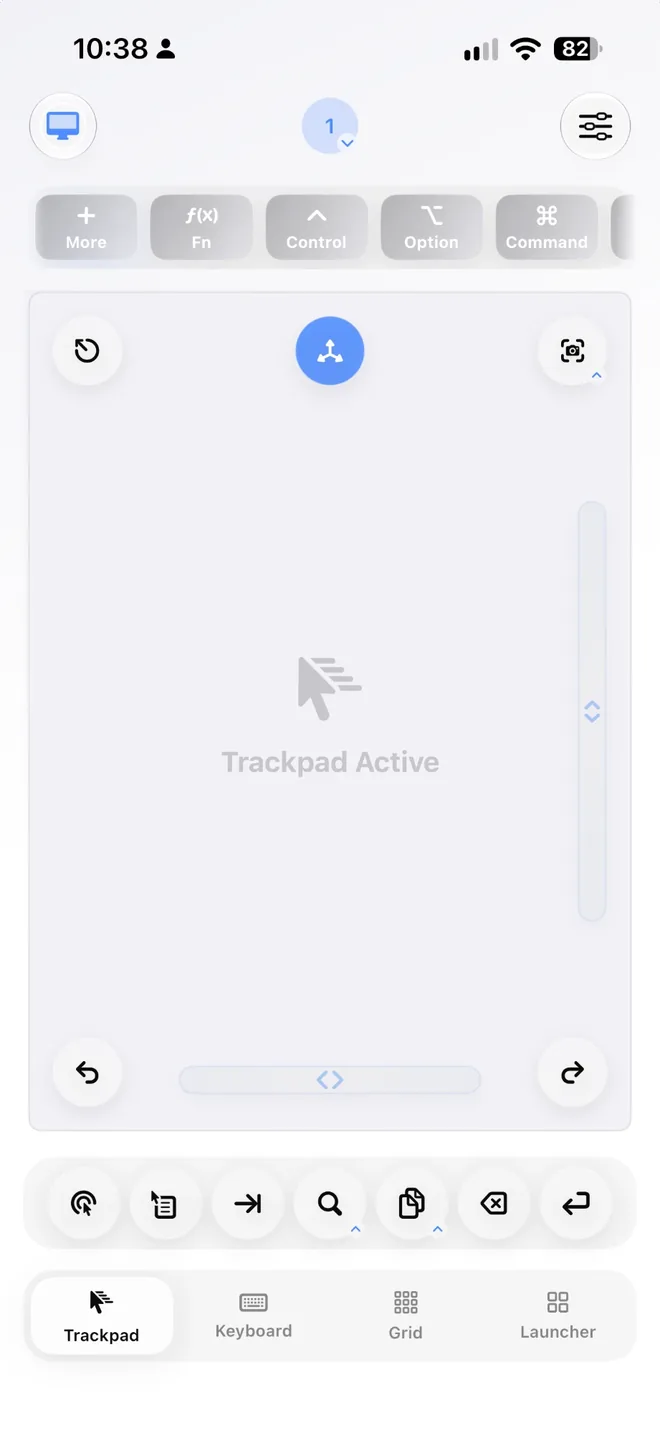
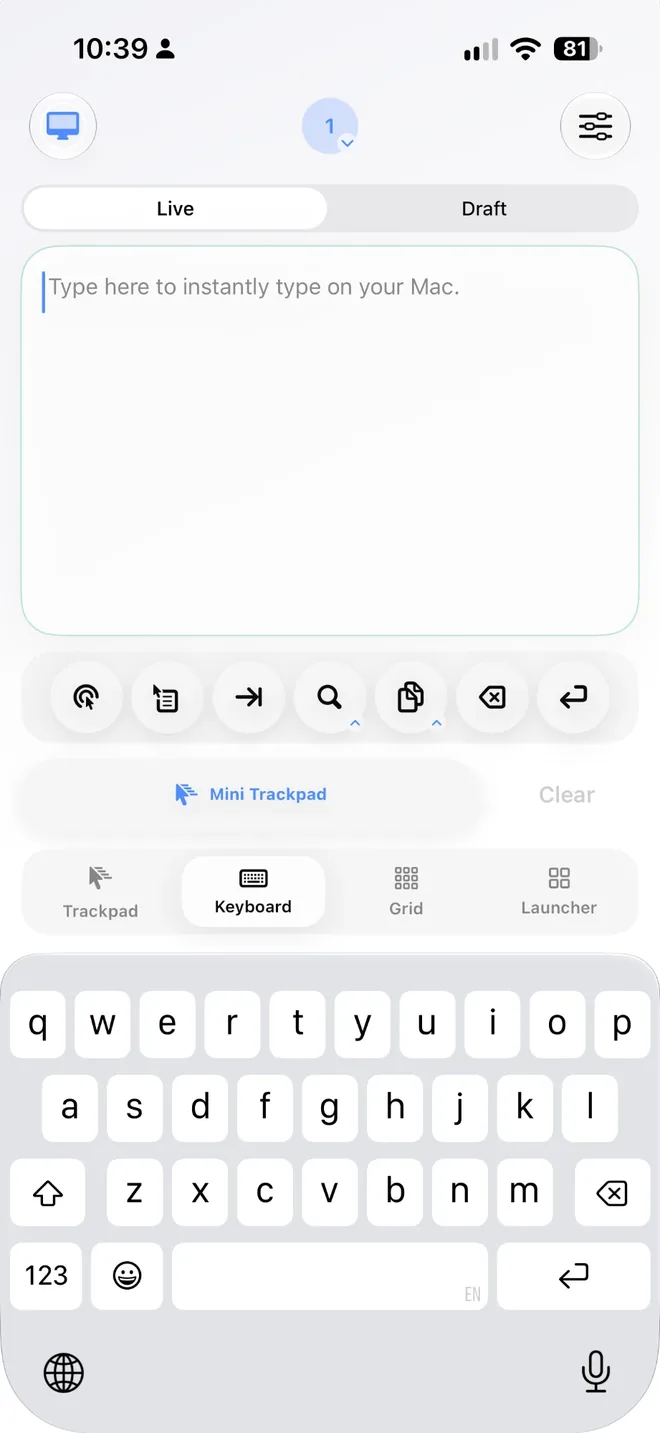
Many Mac shortcuts need two or three keys held down at once, often at opposite ends of the keyboard. With one hand that's a stretch, and sometimes impossible. On the Grid, each one is a single button.
Shift-Command-4 for a screenshot, Option-Command-Esc to force quit, Control-Command-Q to lock the screen, Control-Command-Space for emoji. Put them on your Grid and each chord becomes one press of one finger.
You can record a shortcut by pressing it on the Mac once, or simply pick the keys by hand on the phone. Either way, you never have to hold the chord again.
Give your browser, your editor or your mail app its own Grid. It switches in by itself when that app comes to the front, so the right shortcuts are always under your thumb.
Your favorite shortcuts can also sit in the trackpad's top row, up to 12, so pointing and shortcuts happen on the same screen without switching modes.
A Grid for each app, Auto-Switch and the trackpad's top row come with Full App. The free Essentials plan includes one Grid button to try it. Ready-made examples are in the macro pad guide.
Step-by-step setup, Bluetooth vs Wi-Fi, and using an iPad as a trackpad.
A Grid of Mac shortcut buttons that follows the app you're in.
Control My Mac vs Remote Mouse, Mobile Mouse and Unified Remote.
Using a Mac mini under the TV without getting up.
Start the free 7-day trial of Full App on iPhone or iPad. After that, Essentials stays free with trackpad movement, click, right click, Live and Draft Keyboard basics, one Grid button and Launcher preview — and Full App is $4.99/month, $39.99/year or $119.99 once in the US (€5.99, €44.99 or €129.99 in euro countries). No account, no ads, no data collected.
Questions about whether it fits your setup? Email support@controlmymac.com — happy to give a straight answer.